Guides
Getting started
- Installation
- Server
- Package repository (pacman and APT)
- Child's computer (Linux)
- Child's computer (Windows)
- Settings in the web interface
Operation
- Updates
- Backup and restore
- Data retention
- Switching to PostgreSQL (one-time)
- Uninstalling (child's computer)
- Games (Steam, Heroic)
Security
Child's computer (Linux)
On this page
Everything as admin on the child’s computer unless stated otherwise.
Child accounts
Each child gets a normal account, i.e. not in wheel:
sudo useradd -m -c "Max" max
sudo passwd max
Important
KidCTL never restricts accounts in wheel, sudo or admin, nor root.
So as an admin you cannot lock yourself out.
Set up the repository and install the package
curl -O https://kids.example.org/repo/kidctl-repo-client.sh
sudo bash kidctl-repo-client.sh https://kids.example.org/repo <FINGERPRINT>           # dry run
sudo bash kidctl-repo-client.sh https://kids.example.org/repo <FINGERPRINT> --apply
# Arch
sudo pacman -S kidctl kidctl-plasma   # KDE Plasma
sudo pacman -S kidctl kidctl-gnome    # GNOME
# Debian, Ubuntu, Mint, Pop!_OS
sudo apt install kidctl kidctl-gnome  # GNOME (Ubuntu, Debian, Pop!_OS 22.04)
sudo apt install kidctl kidctl-plasma # KDE Plasma (Kubuntu)
kidctl-repo-key.sh shows the fingerprint when the key is created (see
Package repository).
The script detects the distribution: on Arch it checks the downloaded key against the fingerprint,
trusts it locally (pacman-key --lsign-key) and adds [kidctl] with SigLevel = Required DatabaseRequired to
/etc/pacman.conf (backup pacman.conf.kidctl.bak); on
Debian/Ubuntu it puts the key in /etc/apt/keyrings/kidctl.asc and the repository in
/etc/apt/sources.list.d/kidctl.sources. After that, updates arrive with the normal system update
(also via Ubuntu’s automatic updates).
Debian/Ubuntu – special notes:
- The sign-in lock is registered via
pam-auth-update(profile “kidctl” in/etc/pam.d/common-account). - Ubuntu 24.04 and systems based on it (Mint 22, Pop!_OS) have no PySide6 and only
pydantic1: the tray app then uses PyQt6 from the system packages, the agent bundlespydantic2 andwebsocketsin/usr/lib/kidctl/vendor. Newer systems (Debian 13, Ubuntu 26.04) use their own packages. - Snap apps (on Ubuntu e.g. Firefox) appear in the app catalogue and are allowed per snap name, like Flatpak apps per app ID.
- Files (Nautilus) is always allowed on Ubuntu: Ubuntu’s desktop icons need it running in the background all the time.
- Steam from Ubuntu’s package
steam-installer(/usr/games/steam) stores its library, as on Arch, under/srv/steam/<child>(~/.steam/debian-installationis a link to it).
If both desktops are installed, install both packages. The script aborts if the key
doesn’t match the fingerprint. During installation kidctl adds the sign-in lock to
/etc/pam.d/system-login (backup system-login.kidctl.bak), switches /etc/nsswitch.conf to
the DNS filter and activates the browser policies against DNS-over-HTTPS.
| Package | Contents |
|---|---|
kidctl | agent, tray app, kidctl command, sign-in lock, web filter |
kidctl-plasma | SDDM theme with the sign-in lock notice |
kidctl-gnome | AppIndicator extension (tray icon in the top bar, preset for all users), “KidCTL” entry in the app overview |
If the matching package for an installed desktop is missing, pacman points this out and the web interface
reports it under “Integrity”.
Tray icon: the KidCTL symbol with a coloured status dot (green, yellow, red, grey = no connection), matching a light or dark panel. The remaining time is shown in the tooltip and at the top of the menu; warnings and the countdown work as before.
GNOME: Don’t set up automatic login (AutomaticLogin in /etc/gdm/custom.conf) for children.
If the sign-in lock rejects it at boot, GDM shows no sign-in screen but
stays black (GDM behaviour). The web interface reports such a setting under “Integrity”.
If a child switches off the “AppIndicator” extension, only the tray icon is missing – the web interface reports
this; remaining time and chat stay reachable via “KidCTL” in the app overview. To switch it
back on as the child: gnome-extensions enable appindicatorsupport@rgcjonas.gmail.com.
Without a repository (e.g. to try it out) you can also install directly from the Git checkout:
cd packaging/arch && makepkg -si.
Pair the device
Web interface → “Devices” → “Add device” with a name, e.g. “Laptop Max”. A pairing code is shown (8 characters, valid for 10 minutes).
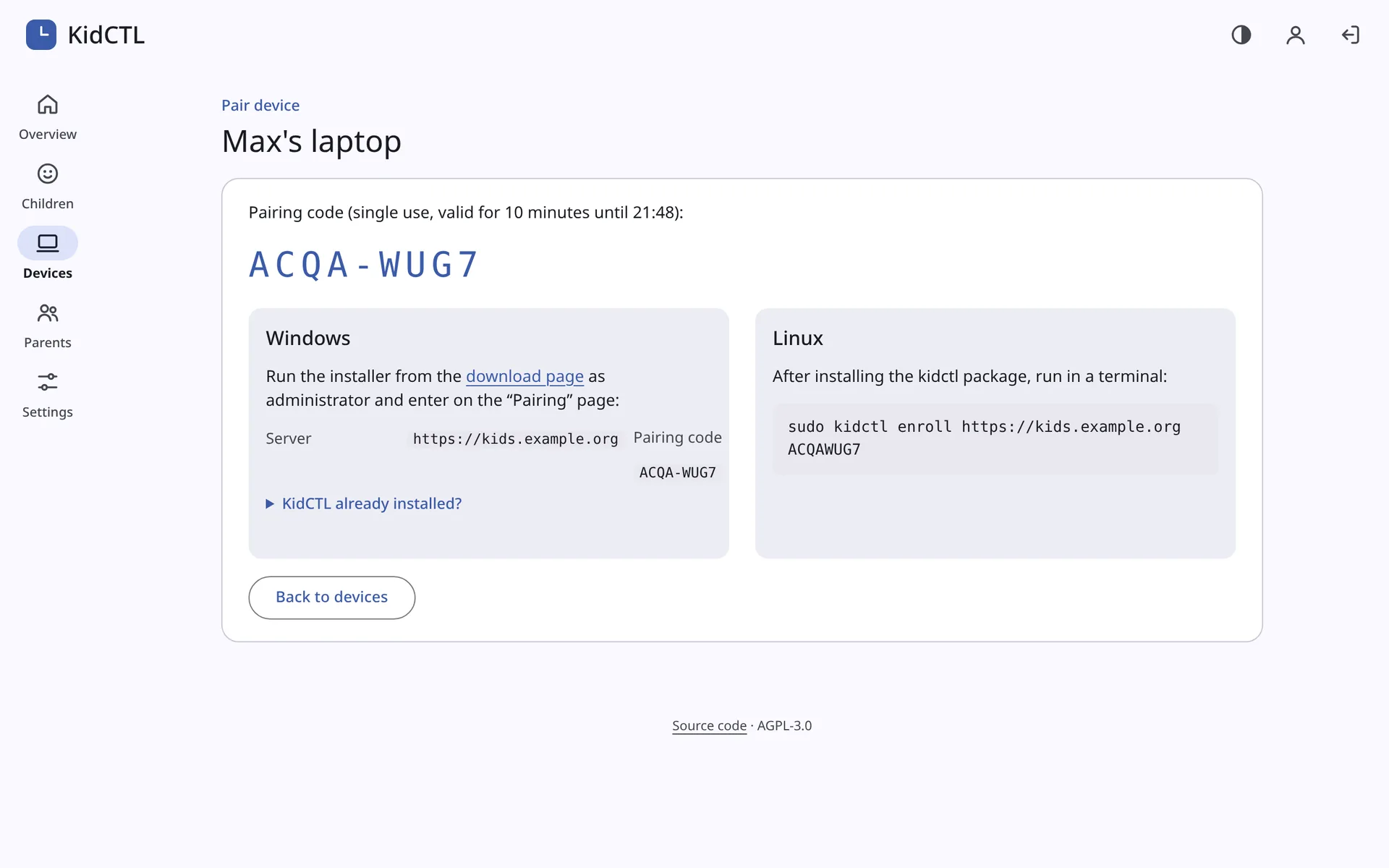
On the child’s computer:
sudo kidctl enroll https://kids.example.org <PAIRING-CODE>
sudo systemctl enable --now kidctl-agent.service
The device appears as “online” in the web interface.
Create and assign the child
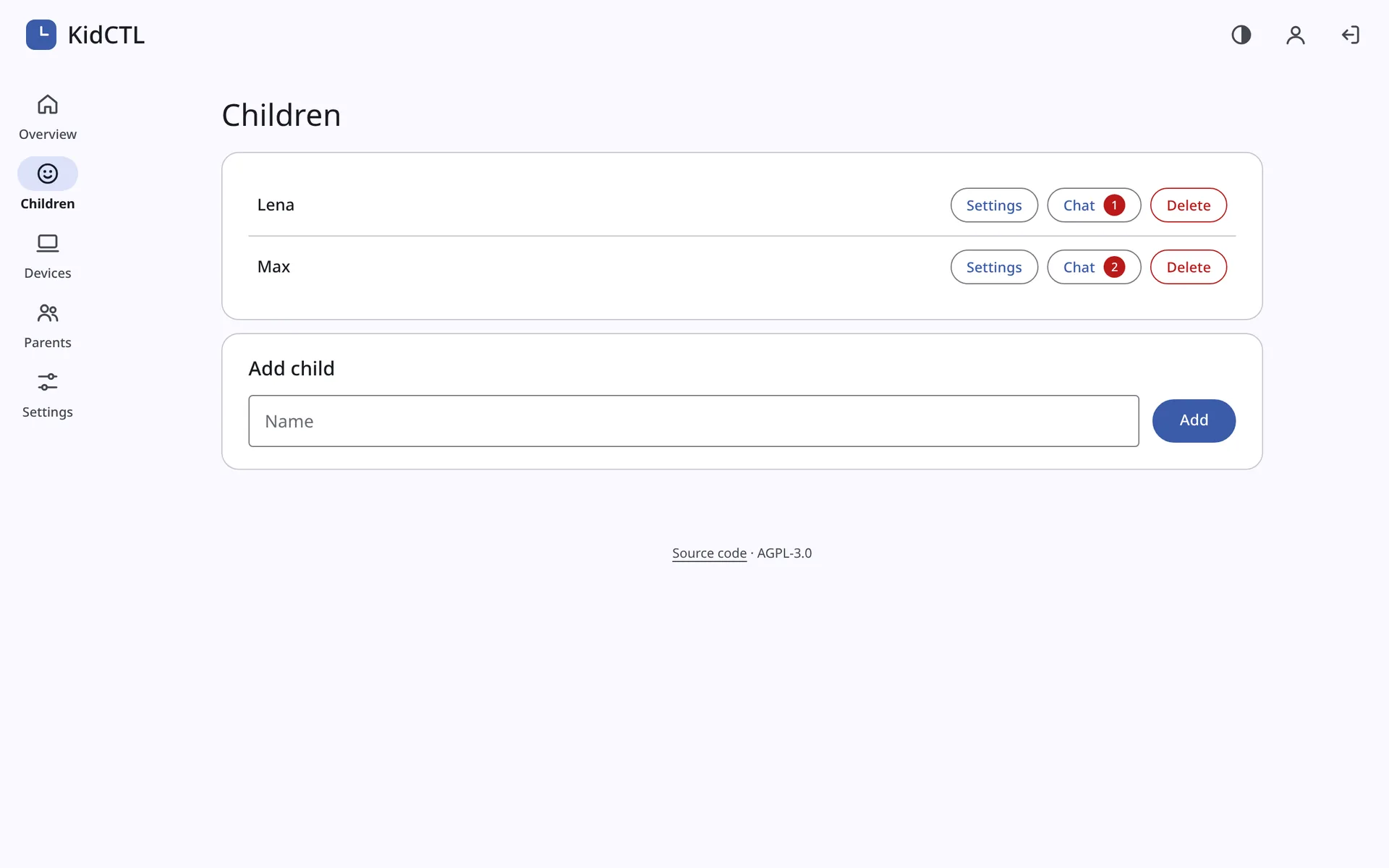
Web interface → “Children” → “Add child”.
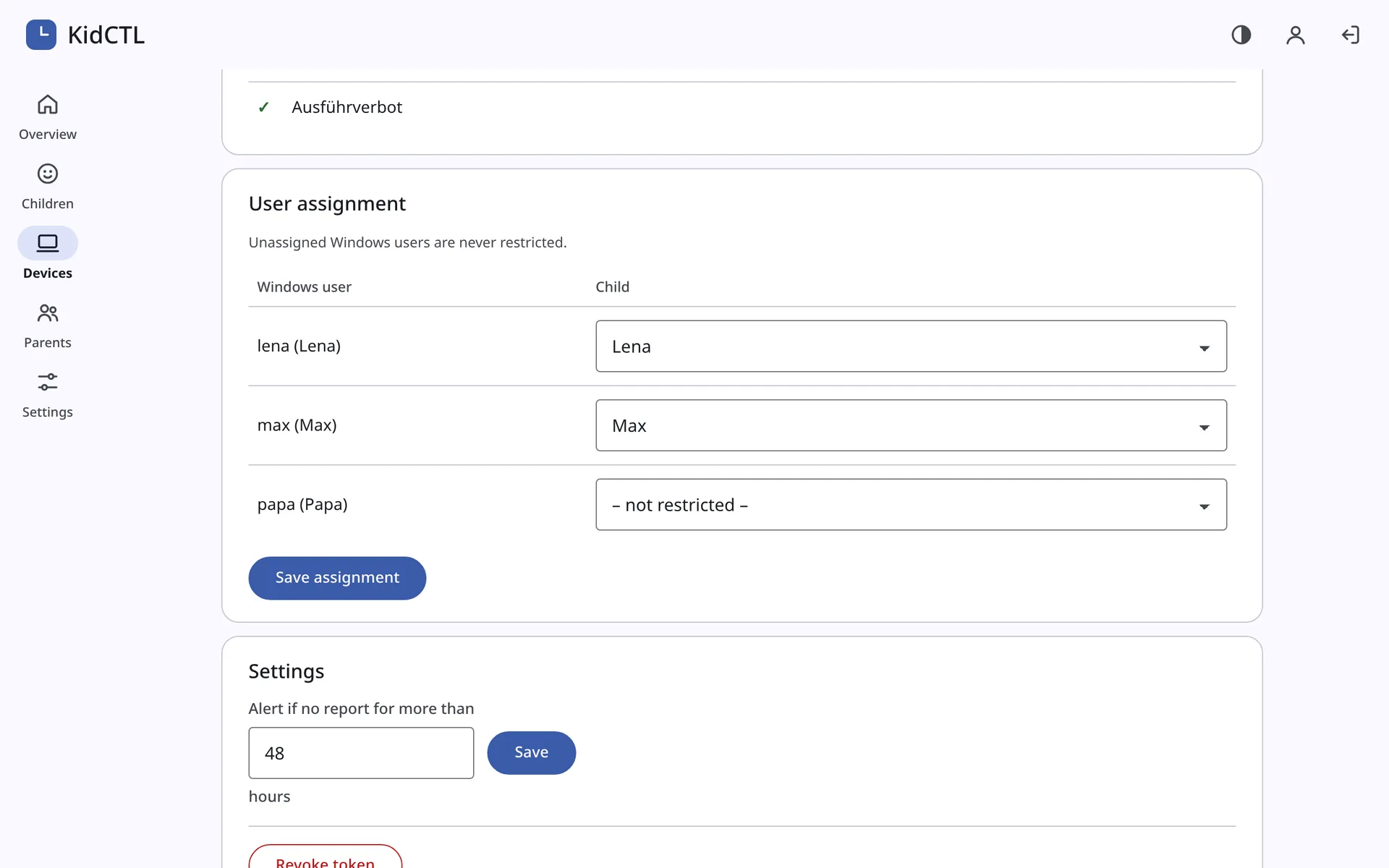
Web interface → device → “User assignment”: assign the reported Linux accounts to the child. Unassigned accounts stay unrestricted.
Reboot the child’s computer so that all protections take effect (noexec home, tray app in autostart, sign-in screen).
Check
sudo kidctl status                       # policy and today's usage
systemctl status kidctl-agent
journalctl -u kidctl-agent -b            # troubleshooting
In the web interface, the “Integrity” section of the device shows whether all protections are active. If one fails later, a push alert arrives.
Edit on GitHub · German is the source; please change both languages.